If your Nest Protect is chirping, you’re hearing one of two things: a low-battery warning or a sensor trouble alert. Both are designed to wake you up at inconvenient times — usually 2 a.m. — and both have specific fixes. The good news is that Nest Protect tells you exactly what’s wrong through its app, color codes, and chirp pattern. The bad news is that if your unit was manufactured in 2014 or earlier, the fix is replacement, not troubleshooting.
This guide covers every reason a Nest Protect chirps, how to diagnose which one is happening, and the exact steps to silence it. If you need a fast answer, jump to the quick fix checklist. For full context, read the entire article.
Quick Fix Checklist
When your Nest Protect starts chirping, run through this checklist in order. Most chirping is resolved within the first three steps.
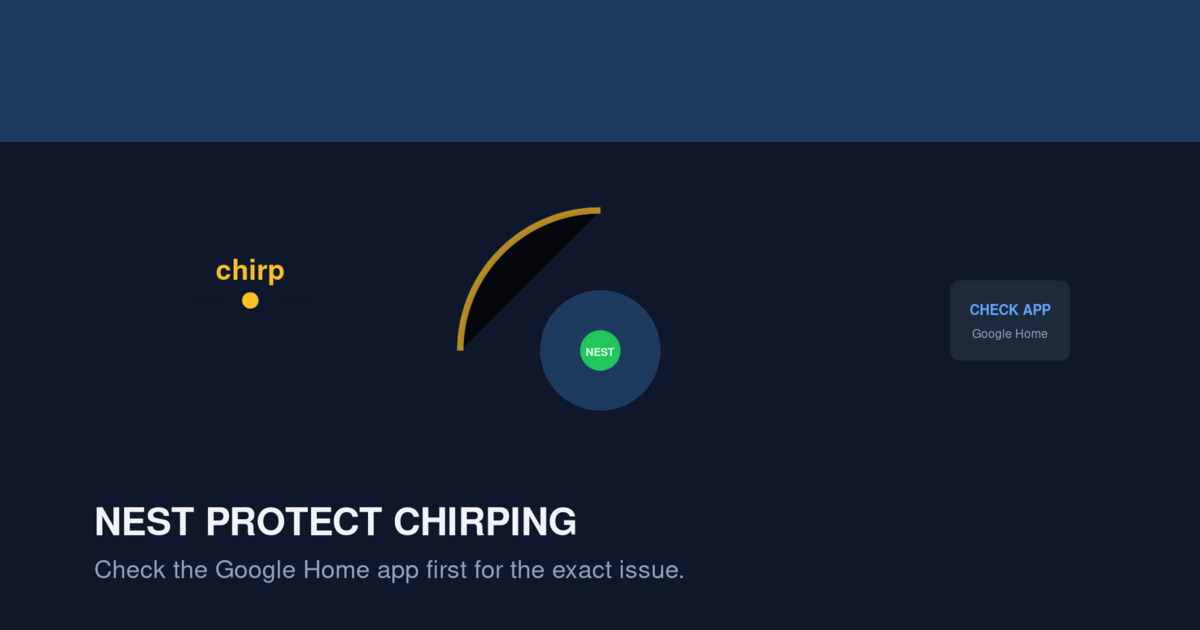
- Open the Google Home app (or the Nest app if your unit is older than 2020) and check for a notification. The app tells you the exact reason for the chirp.
- If the app shows “Low battery,” replace the batteries. Nest Protect uses six AA Energizer Ultimate Lithium batteries. Don’t use alkaline.
- If the app shows “Sensor problem,” press the center button to silence the chirp for 24 hours, then clean the unit.
- If the app shows “Expired,” the unit is past its 10-year lifespan. Replace it. See our Nest Protect Discontinued Replacement Guide for current options.
- If no app notification appears and the chirp is loud and continuous, treat it as an emergency. Evacuate and call 9-1-1.
Why Nest Protect Chirps
Nest Protect uses two different sounds to communicate with you. Understanding the difference is the key to fixing the right problem.
The Difference Between Chirps and Alarms
A chirp is a short, sharp beep that repeats every 30 to 60 seconds. It is not loud enough to wake most sleeping people, but it is specifically engineered to annoy you into action. A chirp means something needs attention, but there is no immediate danger.
An alarm is a loud, continuous series of beeps. If smoke or carbon monoxide is detected, the alarm is piercing and persistent until you manually silence it. The unit’s voice may also announce “Heads up. There’s smoke in the hallway” or “Emergency. Carbon monoxide detected.”
If you are hearing a chirp, the unit is asking for maintenance. If you are hearing an alarm, the unit is reporting danger. This guide focuses on chirps, since that’s what most people are searching for. For emergency alarms, see Smoke Detector Beeping 3 Times and our CO Detector Beeping Patterns guide.
The Six Reasons Nest Protect Chirps
After analyzing support documentation and user reports, there are six reasons a Nest Protect will chirp:
- Low battery — the most common cause, triggered when voltage drops below operational threshold
- Sensor failure — the smoke or CO sensor is malfunctioning or contaminated
- End of life — the unit is past its 10-year lifespan, even if it appears to work
- Wi-Fi disconnection — extended offline periods trigger a trouble alert
- Steam/humidity false alarm — the unit detected something and is reminding you
- Internal component fault — a rare hardware failure that requires replacement
Each reason has a different chirp pattern, a different app notification, and a different fix.
Battery-Related Chirps
The most common Nest Protect chirp is the low-battery warning. Nest designed the unit to warn you well before the batteries die, so you have time to replace them without losing protection.
Identifying a Low-Battery Chirp
The low-battery chirp is a single short beep, every 60 seconds, with a yellow LED pulse before each chirp. On second-generation Nest Protects (the round ones made after 2015), the LED ring glows yellow briefly before each chirp. On first-generation units (square shape, sold 2013-2015), a yellow LED flashes next to the speaker.
In the Google Home or Nest app, you will see a notification that says “Smoke alarm: Low battery” or “Nest Protect battery is low.” The app notification may appear days before you actually hear the chirp, which gives you time to buy batteries.
How to Replace the Batteries
Nest Protect uses six AA batteries. Nest officially recommends Energizer Ultimate Lithium AA batteries. Do not use alkaline batteries in a Nest Protect. Alkaline batteries have a shorter lifespan and can leak, which damages the unit internally.
To replace the batteries:
- Twist the Nest Protect counterclockwise off its mounting plate.
- Open the battery door on the back by pressing the tab.
- Remove all six old batteries.
- Insert six new Energizer Ultimate Lithium AA batteries, matching the +/- orientation shown inside the compartment.
- Close the battery door firmly. You should hear a click.
- Press the center button. The unit will run a self-test and announce “Ready” when complete.
- Twist the unit back onto its mounting plate.
The chirp should stop immediately after the self-test. If it continues, the unit may have a sensor problem or may need a software reset.
Why Lithium Batteries Are Required
Nest Protect’s voltage detection circuit is calibrated for lithium batteries. Alkaline batteries produce a slightly lower voltage (1.5V nominal vs 1.7V for lithium), and as alkaline batteries drain, their voltage drops faster. This causes the Nest Protect to trigger false low-battery warnings even when alkaline batteries have 30-40% capacity remaining.
Using alkaline batteries can also shorten the unit’s backup battery life during power outages. If your home has hardwired Nest Protects, the AA batteries serve as backup during outages. Lithium batteries last 7-10 years in this role. Alkaline batteries typically last 1-2 years.
Sensor-Related Chirps
The second most common chirp is a sensor trouble alert. This is more serious than a low-battery warning because it means the smoke or carbon monoxide sensor is not functioning reliably.
What a Sensor Trouble Chirp Sounds Like
A sensor trouble chirp is a single beep every 30 seconds, accompanied by a yellow LED ring flash. The unit may also announce “Sensor problem. Replace your Nest Protect soon.” This is different from the low-battery chirp, which uses a 60-second interval.
Common Causes of Sensor Trouble
There are three primary causes of sensor trouble alerts:
Dust contamination: Over time, dust and small particles accumulate inside the sensor chamber. This is especially common in homes near construction sites, in homes with pets that shed heavily, or in homes with HVAC systems that don’t filter air well. The dust interferes with the photoelectric sensor’s light beam, causing the unit to trigger a trouble alert.
Steam exposure: Nest Protect’s smoke sensor is sensitive to both smoke and steam. If your Nest Protect is installed too close to a bathroom or kitchen, repeated exposure to steam can confuse the sensor and trigger a trouble alert. This is why Nest recommends installing Nest Protect at least 10 feet away from bathrooms and cooking appliances.
Sensor aging: All smoke and CO sensors degrade over time. After 10 years, the sensor can no longer reliably detect smoke or CO, and Nest Protect will chirp to alert you. No amount of cleaning or resetting will fix an expired sensor.
How to Clean a Nest Protect
If you suspect dust contamination, clean the unit:
- Remove the Nest Protect from its mounting plate by twisting counterclockwise.
- Use a can of compressed air to blow dust out of the vents on the side of the unit.
- Use a soft, dry brush (a clean paintbrush works well) to gently brush the exterior vents.
- Do not open the unit’s case or touch the internal sensor. This will damage the sensor and void the warranty.
- Press and hold the center button for 10 seconds to run a self-test.
If the sensor trouble chirp returns after cleaning, the sensor is likely failing due to age or internal damage. The unit must be replaced.
End-of-Life Chirps
Nest Protect has a 10-year lifespan from the date of manufacture, not from the date of installation. After 10 years, the sensor is no longer certified to detect smoke or carbon monoxide. Nest Protect will begin chirping to alert you when it is approaching expiration.
How Nest Protect Tells You It’s Expiring
Nest Protect uses a staged warning system:
- Six months before expiration: The unit’s Nightly Promise changes from green to yellow. A voice announcement says “Heads up. Nest Protect will expire in [X] months.”
- At expiration: The chirp starts, with a voice announcement “Nest Protect has expired. Replace it now.”
- After expiration: The chirp continues every 60 seconds. The unit still detects smoke, but the CO sensor is no longer certified.
How to Check Your Nest Protect’s Expiration Date
You can check the expiration date three ways:
- In the app: Open Google Home or Nest, tap the device, and look for “Expires” in the device details.
- On the back of the unit: The manufacture date and expiration date are printed on the label. For example, “Manufactured: 2018-06. Expires: 2028-06.”
- By voice: Press the center button and ask “When do you expire?” (only works on second-generation units).
For full details, see our Nest Protect End-of-Life Guide.
Wi-Fi and App-Related Chirps
Less commonly, Nest Protect will chirp because it has lost its Wi-Fi connection for an extended period. This is more of a “trouble alert” than a true chirp, but the sound is similar.
When Wi-Fi Loss Triggers a Chirp
If your Nest Protect loses Wi-Fi connection for more than 24 hours, it will chirp every 60 seconds to alert you that it can no longer communicate with the app. This is a security feature — if the unit is offline, you cannot receive remote alerts, and the unit wants you to know.
This chirp is most common in homes where the Wi-Fi router is in a different part of the house, where the Wi-Fi password was recently changed, or where the home network has been reset.
How to Fix Wi-Fi-Related Chirps
- Check that your Wi-Fi network is working. Open the Google Home app and see if other devices are online.
- Restart your Wi-Fi router by unplugging it for 30 seconds, then plugging it back in.
- Wait 5 minutes for the router to fully restart, then check the Nest Protect app.
- If the Nest Protect is still offline, perform a Wi-Fi reset: press and hold the center button for 15 seconds until the unit announces “Resetting Wi-Fi.”
- Reconnect the unit to your Wi-Fi network through the app.
If the chirp continues after Wi-Fi restoration, perform a full factory reset: hold the center button for 30 seconds until the unit announces “Ready to factory reset,” then re-add the unit to your account.
False Alarm and Steam Chirps
In some cases, Nest Protect will chirp after a false alarm to remind you that the unit was triggered. This is most common after cooking smoke or shower steam triggers the alarm.
When False Alarms Cause Chirping
After a false alarm event, Nest Protect may emit a single chirp every few minutes for up to an hour. This is the unit’s “memory chirp” — it is reminding you that the alarm was triggered, even though the danger has passed.
To silence the memory chirp, press the center button once. The unit will announce “Silenced” and stop chirping.
Preventing Future False Alarm Chirps
If false alarms are frequent, consider relocating the Nest Protect. The unit should be:
- At least 10 feet away from cooking appliances
- At least 10 feet away from bathroom doors
- Not directly above a shower (steam rises)
- Not in a garage or attic where dust accumulates
If relocation is not possible, use the Steam Check feature in the app to reduce sensitivity in steam-prone locations.
Internal Component Failures
A small percentage of Nest Protects will chirp due to internal component failures that are not related to battery, sensor, or Wi-Fi issues. These failures are rare but serious.
Identifying a Component Failure
A component failure chirp is usually a rapid triple-beep every 30 seconds, accompanied by a yellow or red LED. The app will show “Hardware error” or “Internal error.” The unit may also fail the self-test when you press the center button.
What to Do for a Component Failure
A component failure is not repairable. The unit must be replaced. Contact Google support first to check if your unit is still under warranty. Nest Protect has a 2-year warranty from the date of purchase. If your unit is under warranty, Google will replace it free of charge.
If your unit is out of warranty, do not attempt to repair it. Smoke detectors are safety-critical devices, and unauthorized repairs can cause the unit to fail during an actual fire.
Nest Protect Generation Differences
The troubleshooting steps differ slightly between first-generation and second-generation Nest Protects.
First-Generation Nest Protect (2013-2015)
First-generation units are square-shaped and use the Nest app (not Google Home). The chirp patterns are identical to second-generation units, but the app experience is different. First-generation units also lack the Nightly Promise feature and the “Heads up” voice warnings. They use a single green LED instead of a colored ring.
If you have a first-generation Nest Protect, the unit has been discontinued and may be past its 10-year expiration. See our Nest Protect Discontinued Replacement Guide for details.
Second-Generation Nest Protect (2015-Present)
Second-generation units are round and work with both the Nest app and Google Home. They have the colored LED ring, voice announcements, and the Nightly Promise feature. The troubleshooting steps in this guide apply to second-generation units.
When to Replace Your Nest Protect
Replace your Nest Protect immediately if any of the following apply:
- The unit is past its 10-year expiration date
- The sensor trouble chirp returns after cleaning
- The unit fails its self-test
- The unit has visible physical damage (cracked case, water damage, etc.)
- The unit has been exposed to a fire or extreme heat
- The app shows “Hardware error” or “Internal error” persistently
Nest Protect is no longer being manufactured. Google stopped production in March 2025 and partnered with First Alert to develop the SC5 as a replacement. If you need a replacement, consider the First Alert SC5 (the recommended alternative) or another smart smoke detector. See our Nest Protect Discontinued Replacement Guide for full details.
FAQ
Can I silence a Nest Protect chirp without fixing it?
Yes, press the center button to silence the chirp for 24 hours. After 24 hours, the chirp will resume. This is a temporary measure to give you time to buy batteries or troubleshoot.
Will removing the batteries stop the chirp?
Yes, but only temporarily. If the batteries are the problem, the chirp will stop immediately. If the sensor or another component is the problem, the chirp will stop until you reinstall the batteries, then it will start again. Removing batteries is not a recommended fix.
Why does my Nest Protect chirp at night?
Chirps at night are almost always low-battery warnings. Nighttime is cooler, and the temperature drop can cause a marginal battery to drop below the voltage threshold. This is more common in homes where the temperature drops significantly overnight. Replacing the batteries with fresh lithium batteries stops the nighttime chirp.
How long do Nest Protect batteries last?
Energizer Ultimate Lithium AA batteries last approximately 5 years in a battery-only Nest Protect and 7-10 years in a hardwired Nest Protect (where they serve as backup). Using alkaline batteries reduces this to 1-2 years.
Can I use rechargeable batteries in Nest Protect?
No. Rechargeable batteries have a lower nominal voltage (1.2V vs 1.5V for alkaline and 1.7V for lithium). The Nest Protect will interpret the lower voltage as “low battery” and chirp frequently. Use only Energizer Ultimate Lithium AA batteries.
How do I know if my Nest Protect is first or second generation?
First-generation units are square with a single LED. Second-generation units are round with a colored LED ring. The model number is also printed on the back of the unit: model 100 for first-generation, model 200 or 300 for second-generation.
Will my Nest Protect work after Google discontinued it?
Yes. Existing Nest Protects continue to work for their full 10-year lifespan. Google has committed to supporting the Nest app for existing devices. However, new features will not be added, and at some point, the Nest app may be deprecated. Plan to replace your Nest Protect before its expiration date, regardless of Google’s app support.
What if my Nest Protect is hardwired and the backup batteries are dying?
Hardwired Nest Protects use the household AC power for normal operation and the AA batteries as backup during power outages. If the backup batteries die, the unit will chirp every 60 seconds. Replace the backup batteries with Energizer Ultimate Lithium AA batteries. The chirp should stop within a few minutes of replacing the batteries.
Related Articles
- Nest Protect Discontinued: Your 2026 Replacement Guide — what to replace your Nest Protect with now that production has stopped
- Nest Protect End-of-Life: How to Check Expiration — detailed expiration date guide
- Why Is My Smoke Detector Chirping? 9 Common Causes and Fixes — broad troubleshooting for any brand
- Smoke Detector Beeping 3 Times — what a real fire alarm sounds like vs a chirp
- Hardwired Smoke Detector Beeping — for hardwired Nest Protect units